Amazon Search Term Report and Negative Keywords: A Practical Guide
How to pull and read your Amazon Search Term Report, harvest winning search terms, and use negative exact and phrase keywords to cut wasted ad spend.


On this page
Subscribe to my YouTube channel
Live walkthroughs, listing teardowns and answers to seller questions.
You are spending $50 a day on Amazon Pay-Per-Click (PPC) ads. Your Advertising Cost of Sale (ACoS) sits at 35%. You have tweaked bids, paused campaigns, raised and lowered budgets, but you have never downloaded your Search Term Report.
Then you are running your campaigns blind. The Search Term Report (STR) shows what shoppers actually typed before clicking your ad: not the keywords you targeted, but the words real customers used. It is the data behind the two most effective PPC habits: harvesting winning search terms into their own campaigns, and blocking the waste with negative keywords.
This guide covers both: how to download and read the report, a simple four-bucket system for deciding what to do with every search term, and how to use negative keywords without accidentally blocking your best traffic. It is the routine I run every two weeks on my own campaigns.
Key takeaways:
- The STR shows customer search terms, not your keywords. It reveals what shoppers typed before clicking your ad.
- Pull it every two to four weeks. Seven days of data is too noisy for most decisions.
- Sort every term into one of four buckets: Winners, Potentials, Money Drains, or Irrelevant, each with a fixed action.
- Give relevant terms enough data. Amazon recommends at least 20 clicks before you decide to negate a keyword. Clearly irrelevant terms can go immediately.
- Use negative exact by default and negative phrase sparingly. One careless negative phrase can block a whole family of profitable searches.
What Is the Search Term Report?
The Search Term Report lists the customer search terms that triggered your ads and led to at least one click during a date range, with impressions, clicks, spend, orders, and sales for each. It is different from the targeting report, which shows performance by the keywords and ASINs you chose to target. In automatic campaigns, ASINs your ad appeared on also show up in the search term column.
Here is why that distinction matters. Say you run an auto campaign for a garlic press. You targeted no keywords; Amazon matches your ad to searches it considers relevant. The targeting report shows you “close match” with aggregate data. The STR shows the actual terms: “garlic press stainless steel,” “garlic mincer heavy duty,” “garlic crusher easy to clean,” and maybe “onion chopper,” a term that has nothing to do with your product.
Without the STR, you would never know that “onion chopper” burned $14.30 of your budget last month with zero orders, or that “garlic press stainless steel” converted well enough to deserve its own exact match keyword with a higher bid. The STR gives you both insights in one spreadsheet.
How to Download Your Search Term Report
In the Amazon Ads console (Seller Central → Advertising → Campaign Manager):
- In the left navigation, open Measurement & Reporting and choose Sponsored ads reports.
- Click Create report.
- Choose Sponsored Products as the ad product and Search term as the report type.
- Pick the date range. I use 30 days for routine checks and 60 days for a deep optimization pass.
- Run the report and download the file once it is ready. Open it in Excel or Google Sheets.
Amazon is moving reporting to a new unified page (Measurement and Reporting → Reporting) and has announced that the old Sponsored ads reports page will be retired by December 31, 2026. If the old page is gone in your account, build the search term report from the new one; the data you need is the same.
Pro tip: Put a recurring reminder in your calendar every two weeks. Consistency matters more than frequency. I pull mine on the 1st and 15th of every month.
Why not seven days? A search term might get 200 impressions and two clicks in a week. That is not enough to decide anything. Over 30 days, the same term might show 1,200 impressions, 15 clicks, and two orders. Now you have something to work with.
The Columns That Matter
The report has many columns, but these drive decisions:
- Customer search term: the exact phrase the shopper typed. Sometimes it matches your keyword perfectly. Often it does not.
- Impressions: how often your ad appeared for this term. With pay-per-click ads, impressions alone cost nothing, so a term with impressions and no clicks is not wasting money.
- Clicks: every click costs money, so every click without a sale needs to be justified.
- Spend: your total cost for the term. Sort by spend, highest first, and your biggest money drains float to the top.
- Orders and sales: purchases and revenue attributed to the term. A term with three orders on $8.40 of spend is a winner. A term with zero orders on $45 of spend is bleeding you.
- ACoS per term: spend divided by sales. $5 spend on $50 of sales is 10% ACoS. $30 spend on $40 of sales is 75% ACoS and needs attention. For how to set your target, see the ACoS guide.
- Click-through rate (CTR): clicks divided by impressions. A high CTR means shoppers find your ad relevant for that search. A CTR far below your other terms means the ad does not match what they are looking for.
When Do You Have Enough Data?
Most negative keyword mistakes come from deciding too early or too late. The rules I use:
- Clearly irrelevant terms (wrong product, wrong material, wrong intent): negate immediately. No threshold needed.
- Relevant terms with clicks but no orders: wait for about 20 clicks. That is Amazon’s own recommendation before negating a keyword, and it fits the math: at a 10% conversion rate you expect one order per 10 clicks, so 20 clicks without an order is a real signal, while 3 clicks is not.
- Expensive non-converters: a useful second filter is spend of at least twice your target cost per order with zero orders. If your target cost per order is $5, look at terms with $10+ spend and no orders.
The Four-Bucket System
Every search term goes into one of four buckets, and each bucket has a specific action.
Bucket 1: Winners. At least one order, ACoS below your target.
Example: “stainless steel garlic press”: 1,800 impressions, 22 clicks, $11.44 spend, three orders, $71.85 in sales. ACoS: 15.9%.
Action: Add the term as an exact match keyword in a manual campaign, with a bid 15–20% above what you currently pay per click. Then add it as a negative exact in the auto campaign so all future traffic for that search runs through the campaign where you control the bid.
Bucket 2: Potentials. Relevant, some clicks, no orders yet, not enough data.
Example: “garlic press with large handle”: 900 impressions, 12 clicks, $6.24 spend, zero orders.
Action: First check whether your listing matches what this shopper wanted. If your garlic press really has a large handle, give the term another two weeks. If it passes about 20 clicks without an order, it moves to Bucket 3. If your press does not have a large handle, it belongs in Bucket 4.
Bucket 3: Money drains. Relevant-looking, enough clicks, zero or almost zero orders.
Example: “electric garlic chopper”: 3,200 impressions, 38 clicks, $22.80 spend, zero orders.
Action: Add it as a negative exact keyword in every campaign where it spends. Do it in the same session, not next week. That $22.80 is gone, and it keeps growing until you act.
Bucket 4: Irrelevant terms. Wrong product or intent.
Example: “onion chopper food processor”: 2,100 impressions, 14 clicks, $7.28 spend, zero orders.
Action: Negate it right away. If you see a pattern (several terms containing “food processor”), add “food processor” as a negative phrase to block the whole cluster.
How Negative Keywords Work
A negative keyword tells Amazon: do not show my ad for this search. Amazon’s Sponsored Products targeting guide describes two match types for negative keywords:
- Negative exact: your ad will not show for searches that match the exact phrase or a close variation. Negating “free cookware” in exact blocks that search, but not “cookware set free shipping.”
- Negative phrase: your ad will not show for any search that contains the complete phrase or a close variation. Negating “ceramic” in phrase blocks “ceramic pot,” “ceramic pan set,” and every other search containing it.
You can add negative keywords for a whole campaign or for selected ad groups, in Sponsored Products auto, keyword, and product targeting campaigns, and in Sponsored Brands keyword campaigns. Add them at the campaign level when a term is irrelevant to the whole product; use the ad group level only when a term is wrong for one ad group but could work in another. In Campaign Manager, open the campaign (or ad group) and use its negative keywords or negative targeting tab.
For product targeting and auto campaigns, you can also exclude specific ASINs or brands with negative product targets, so your ad stops appearing on those product pages.
Choosing Between Exact and Phrase
For each term you want to block, ask one question:
- Is the term irrelevant in every combination? Negative phrase. Example: you sell stainless steel cookware, and “ceramic pot” keeps showing up. Negate “ceramic” in phrase, because you will never sell ceramic.
- Is the term relevant in general, but this specific search does not convert? Negative exact. Example: “cookware set 10 piece” when you only sell a 5-piece set. “Cookware set” itself is your core keyword, so block only this exact search.
Be careful with short phrase negatives. “Pot” as a negative phrase blocks everything containing “pot,” including “stainless steel cookware pot set.” And “free” in phrase blocks “BPA free” or “PFOA free,” which may be some of your best-converting searches.
A Starter Negative Keyword List
These terms are irrelevant for many products. Consider them for every new campaign, as negative phrase or exact depending on how your listing is worded:
- used / second hand / pre-owned
- how to / tutorial / instructions
- DIY / homemade
- repair / replacement part / spare part (unless you sell parts)
- rent / rental
- free (as negative exact only, for the reason above)
- competitor brand names, unless you run a deliberate conquesting campaign
Check the Search Term Report two weeks after adding them. Amazon recommends letting negative keywords run for at least two weeks before changing your strategy again. If a phrase negative blocks relevant long-tail searches, switch it to exact.
How to Harvest Keywords From Auto Campaigns
This is the most powerful workflow the STR enables, and it is how I build every manual campaign. Auto campaigns are also your biggest budget burners, because Amazon decides which searches and ASINs your ad appears for. Harvesting and negating are two sides of the same routine:
- Launch an auto campaign with “dynamic bids — down only” to keep costs controlled.
- Wait about two weeks. That is also Amazon’s recommendation before building manual campaigns from auto data. Resist checking after three days.
- Download the STR. Sort by orders, then by spend.
- Pull your winners (Bucket 1): every term with at least one order and an ACoS below your target.
- Create a manual exact match campaign with those terms. Set bids 10–20% above the auto campaign’s average cost per click for them.
- Negate those winners in the auto campaign as negative exact, so their traffic runs through the manual campaign.
- Negate Bucket 3 and 4 terms in the auto campaign and anywhere else they spend.
- Repeat every two weeks. Each cycle harvests a few more winners and blocks a few more drains.
Over time, the auto campaign becomes a research engine at a controlled budget, while your manual campaigns hold all proven keywords. This is the foundation of my PPC strategy.
For sellers with 10+ campaigns, this gets time-consuming. PPC automation tools can take over keyword harvesting and negative keyword management from STR data.
Common Mistakes
Checking too often. Pulling the STR every three days means reacting to noise. A term with five clicks and no orders this week might convert next week.
Not negating fast enough. The opposite problem: you spot the drains, plan to negate them later, and close the spreadsheet. Add negatives in the same session.
Negating too aggressively. A relevant term with eight clicks and no orders does not have enough data yet. Stick to the roughly 20-click threshold for relevant terms.
Using phrase where exact would do. Negating short, broad words in phrase blocks profitable searches you never see again. Use negative phrase only for words that are irrelevant in every combination.
Not syncing negatives across campaigns. If you negate a term in the auto campaign but forget the broad campaign, the same traffic keeps flowing through the other door. Keep a central list and check every campaign where the term spends.
Setting and forgetting. Markets change. A term that did not convert six months ago might now, because you improved the listing, added a variation, or the season changed. Keep a spreadsheet of every negative and review it quarterly.
Looking only at ACoS. A term at 35% ACoS looks bad against a 25% target. But if your break-even ACoS is 40%, it still makes money on every sale and may be worth keeping at a lower bid rather than negating. Judge terms against break-even, not just against target.
What Negative Keywords Cannot Fix
Negative keywords eliminate wasted spend. They do not solve fundamental problems:
- Poor conversion rate: if relevant search terms do not convert, the problem is your listing, not your targeting. Start with listing conversion.
- High CPC: negatives cut waste, but they do not lower the price of relevant clicks.
- The wrong product: in an oversaturated market, no negative list will save a product with no edge.
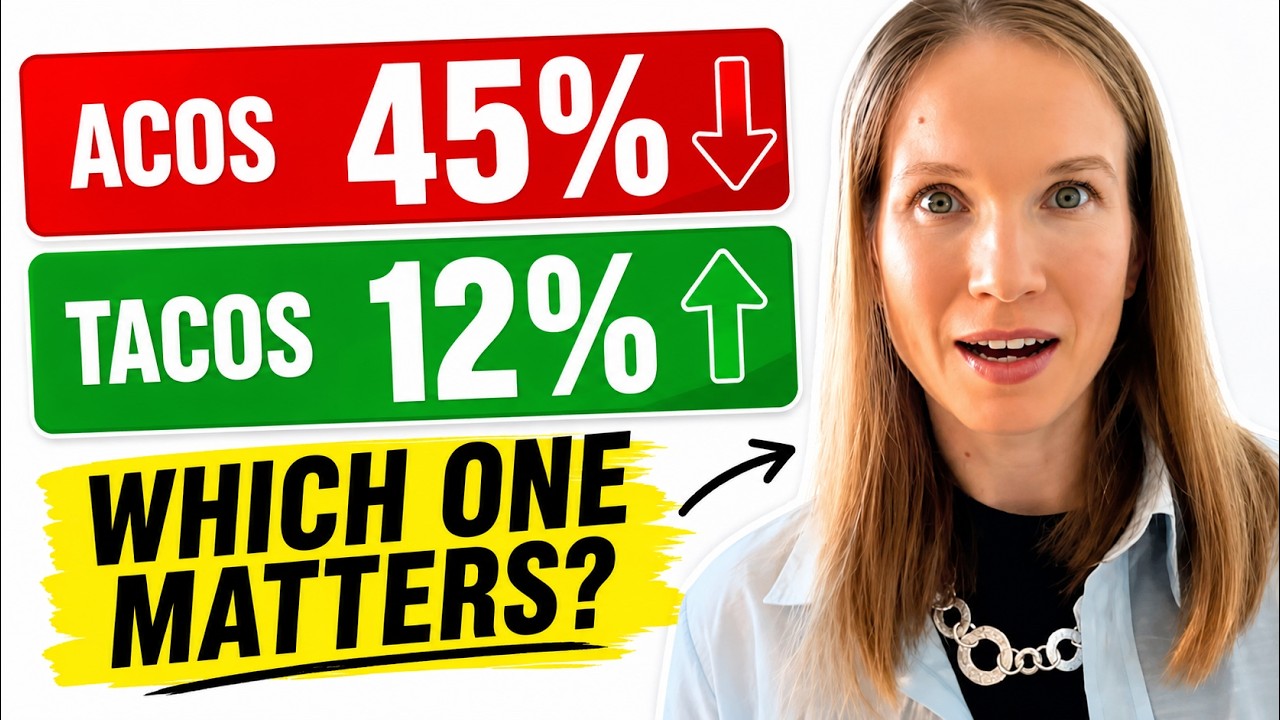
If your ACoS is still above target with a clean negative list, check whether your problem is really advertising or organic ranking: TACoS explained shows how to tell.
Your Next Step
This week: download your Search Term Report for the last 30 days, sort by spend, and look at the top 20 terms. Find the biggest money drains (enough clicks, zero orders) and the irrelevant terms, and add them as negative keywords in every campaign where they spend. It takes about 20 minutes.
I show this whole workflow on screen, with my actual reports, on @AmazonFBAGirl on YouTube.
Sources
- Amazon Ads: A guide to targeting with Sponsored Products (negative keywords, auto targeting, 20-click guidance)
- Amazon Ads: Keyword targeting and match types
- Amazon Ads: Best practices for Sponsored Products (search term report)
- Amazon Ads: Campaign analysis with unified reporting (Sponsored ads reports retirement)
- Amazon Ads: Getting started with sponsored ads
The tool behind this article
I don't run my PPC by hand — Daniks.AI does
Daniks.AI is the automation I built for my own listings: it sets bids, mines keywords, adds negatives, and holds your target ACoS 24/7. It now runs hundreds of other brands.
14 days free, up to 100 SKUs · no card games · cancel anytime.
Disclosure: I own Daniks.AI.

Written by
Ekaterina Rubtcova
Amazon seller since 2018 · Founder of Daniks cookware · Founder of Daniks.AI
My Daniks cookware reached Top-1 in Germany and is currently Top-20 in the USA. To run its PPC I built Daniks.AI — now used by hundreds of Amazon brands. On this blog I share how I actually operate, no courses, no upsells.